

Git Explained Through a Real-World Problem Every Developer Faces
Understanding repositories, commits, branches, and real-world workflows
Why?
You are working on a project, let’s say a todo app.
You have build a basic HTML structure and now you are moving forward to the CSS part. I am assuming that you don’t like writing CSS at all and you opened ChatGPT and takes the CSS file you paste it into your app.
Moving further you created a script.js and wrote all the main features like CRUD.
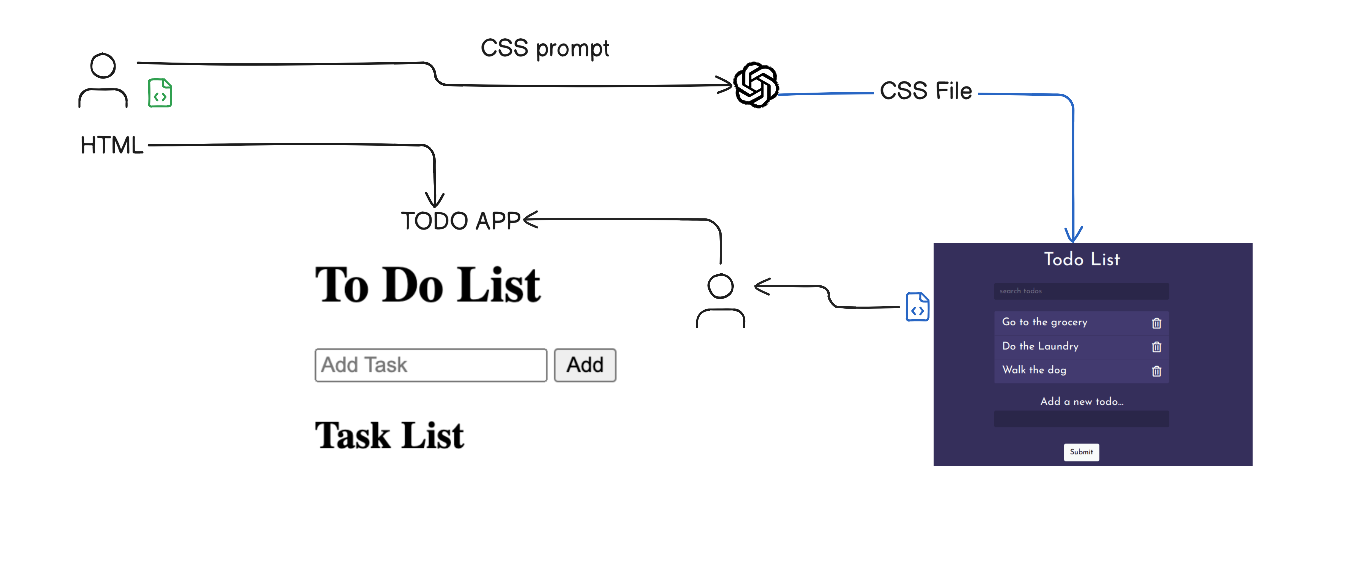
At this point, your app is functional.
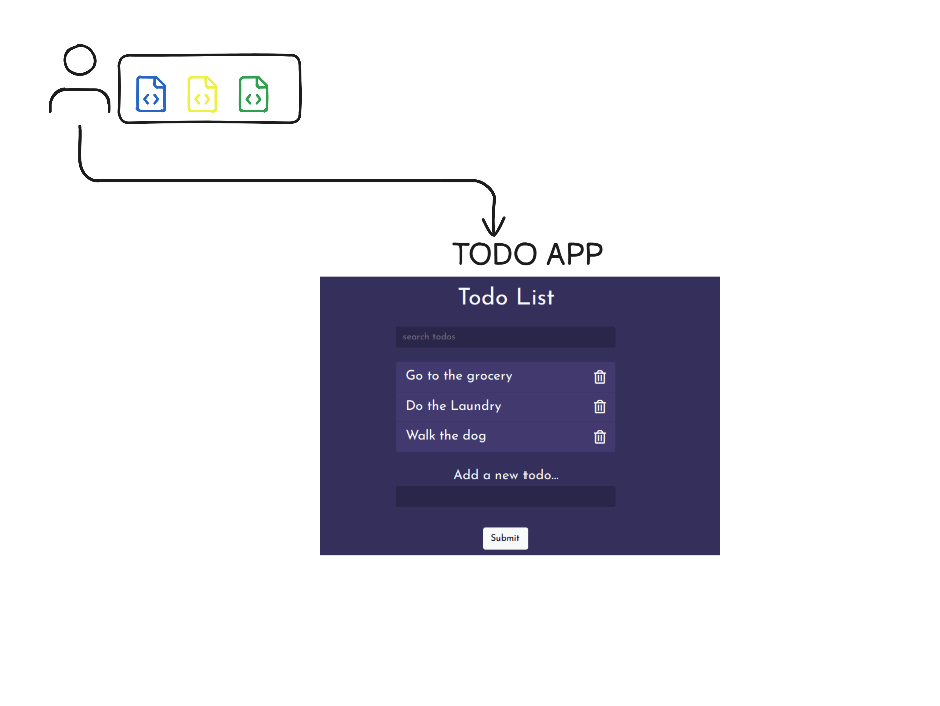
You decide to share the entire codebase with a friend to get their feedback.
He doesn’t like your UI. He calls you and said I am gonna make some changes in your CSS code file.
Next day, when you opened the code files that friend gave you your app was flooded with CRUD errors
UI was changed(pure blue, purple), updating a todo was not working etc. You spend hours debugging just to restore the application to a working state. Eventually, you fix the issues and tell your friend that the code now contains bugs and unnecessary changes.
Now you have to again give your code files.
This time he fixed all bugs and adds a new feature of persisted storage(where all your todos will be saved in your local machine).
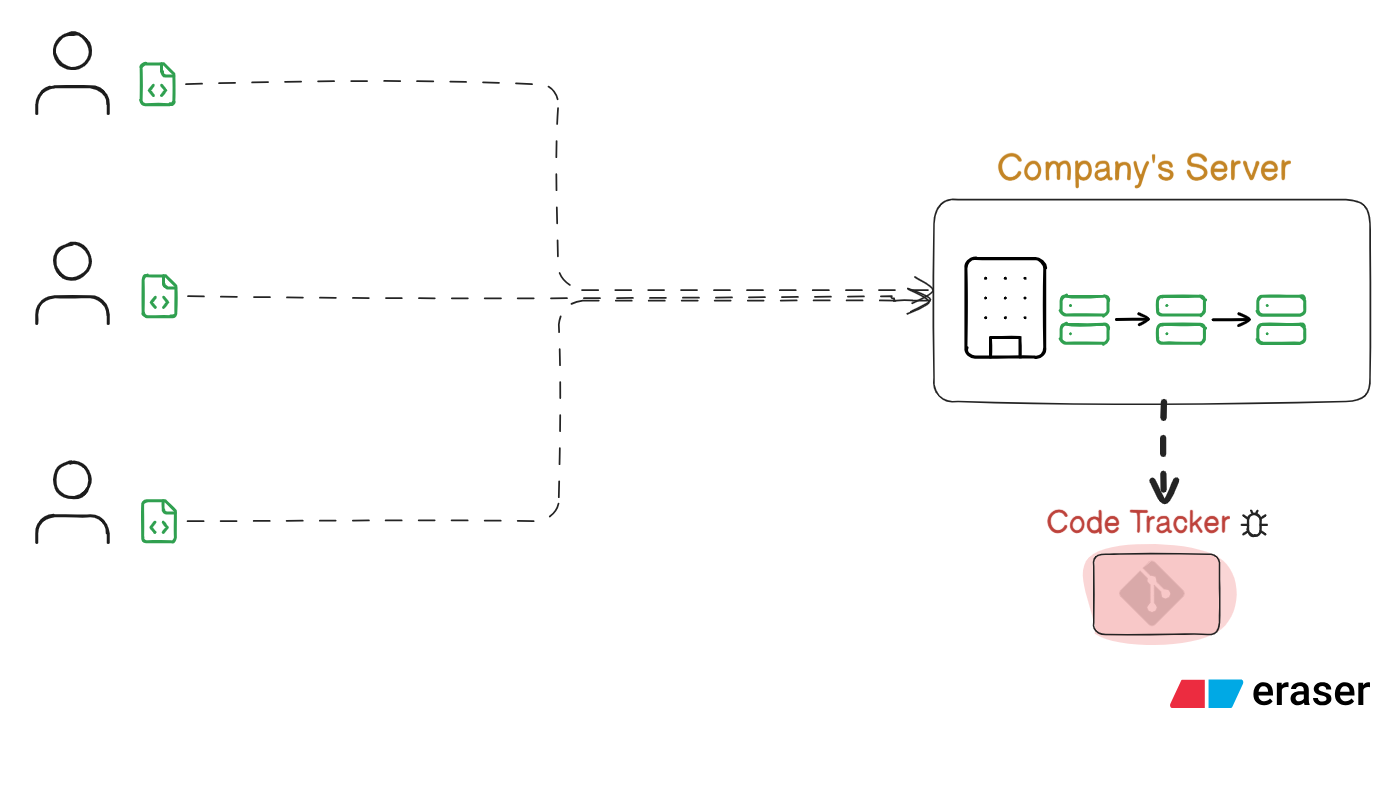
As the project grows, more files are added, and another developer joins in. This creates a bottleneck.
Basically,
As a project matures, the codebase naturally grows in size and structural complexity.
Multiple developers begin contributing simultaneously, increasing the need for coordination and consistency.
Legacy code must be maintained, refactored, and preserved without disrupting existing functionality.
Every change needs to be traceable, clearly recording what was modified, who modified it, and why the modification was necessary.
Throughout the blog I will show you how git solves these problems
Git gist
Git is a distributed version control system (VCS) used to track changes in source code and other files during development.
Before Git
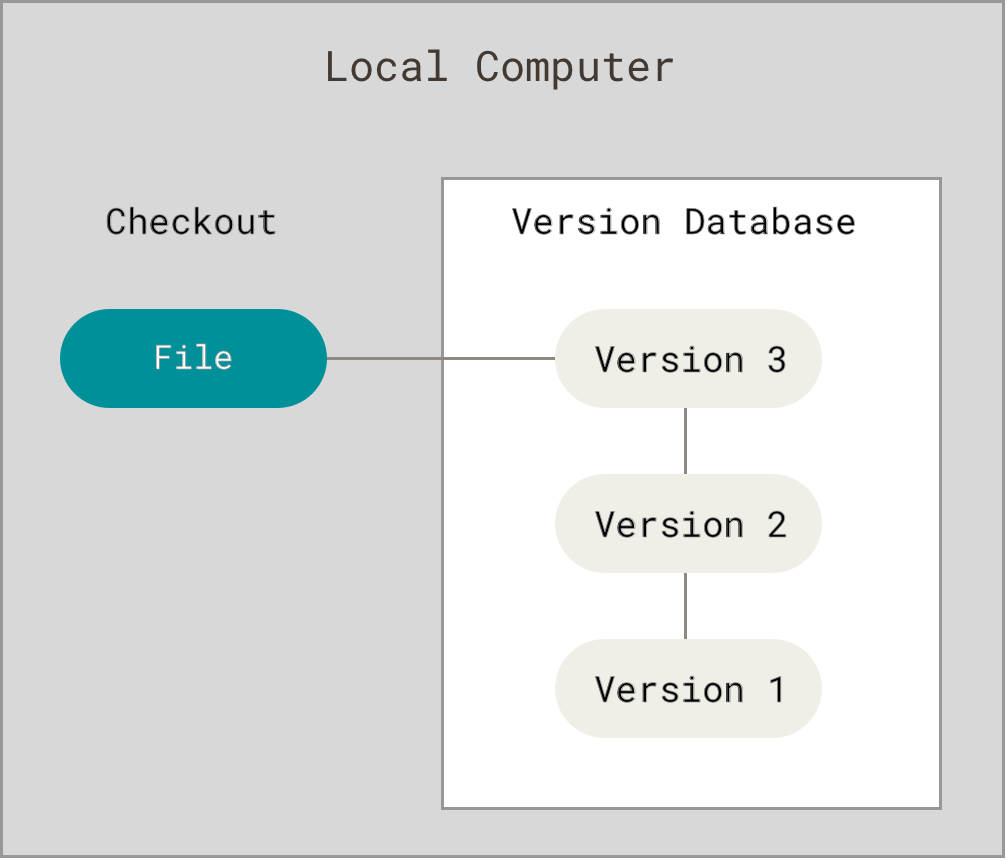
But this has some problems,
The most obvious is the single point of failure that the centralized server represents.
If that server goes down for an hour, then during that hour nobody can collaborate at all or save versioned changes to anything they’re working on.
If the hard disk the central database is on becomes corrupted, and proper backups haven’t been kept, you lose absolutely everything the entire history of the project except whatever single snapshots people happen to have on their local machines.
I remember a time when my previous PC’s hard disk got corrupted and it takes all my crucial data.
After Git
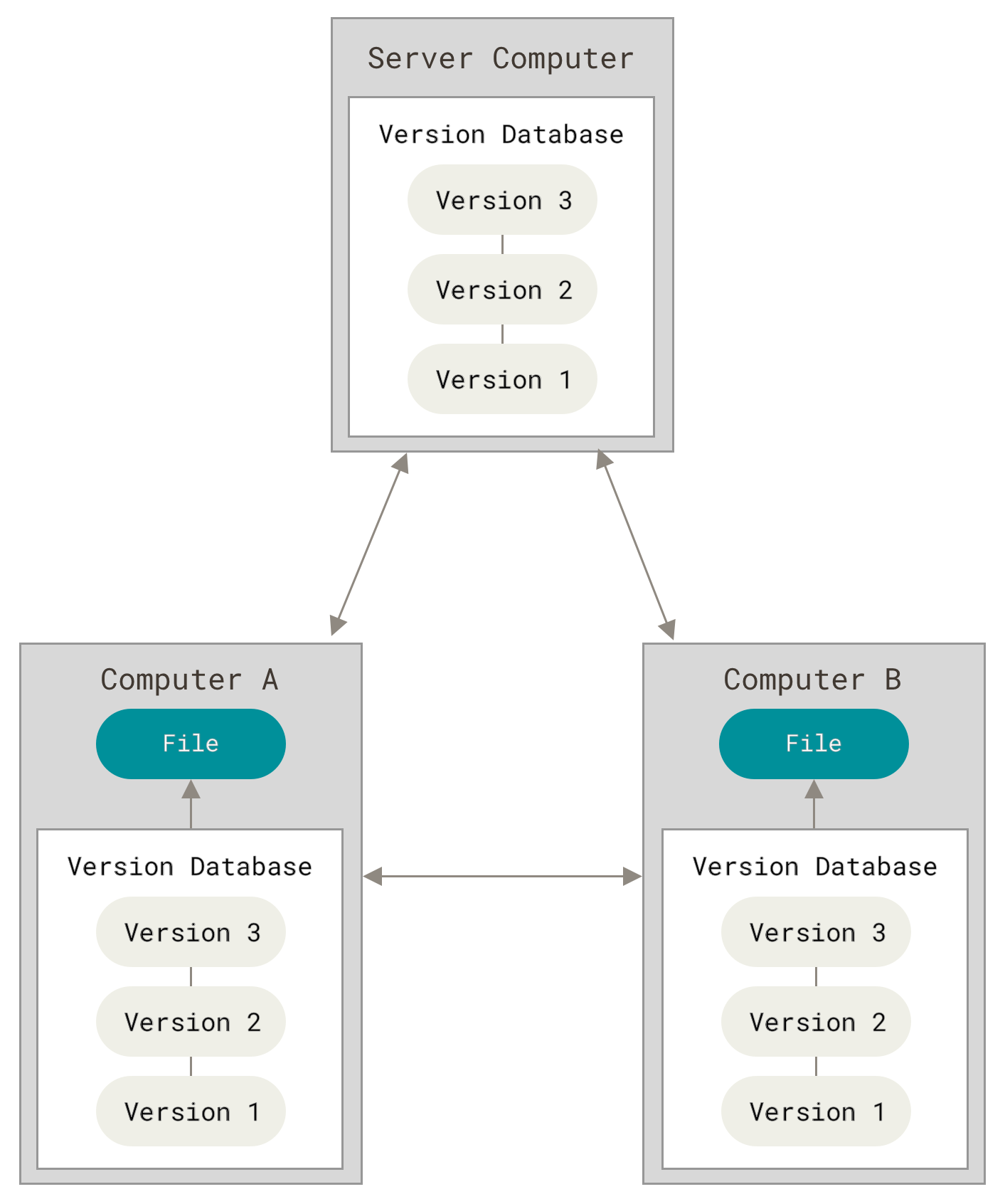
This is where Distributed Version Control Systems (DVCSs) step in.
In a DVCS (such as Git, Mercurial or Darcs), clients don’t just check out the latest snapshot of the files; rather, they fully mirror the repository, including its full history.
Thus, if any server dies, and these systems were collaborating via that server,
any of the client repositories can be copied back up to the server to restore it. Every clone is really a full backup of all the data.
Think of it in this way;
Do you remember Doraemon’s time machine?
It is just that, git installed on Time Machine
You can go through different time passages which is every developer can can work on the same project simultaneously without overwriting each other's work
You can go back in time. You can see what changes you made yesterday and your app is broken now.
You can go back in any time full record & history. Git does the same job your code history if maintained and it’s also works as your backup.
Git Terminologies
1) Repository:
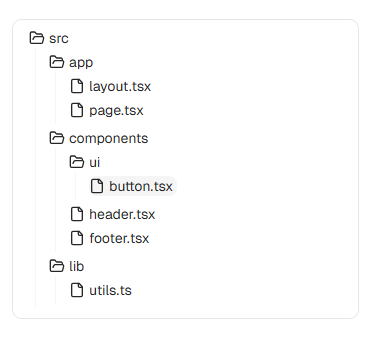
It acts as your central structure and place where all your files:
It contains all project files, folders, and their complete history
Can be local (on your machine) or remote (on GitHub, GitLab, etc.)
Tracks every change ever made to the codebase
2) Commit
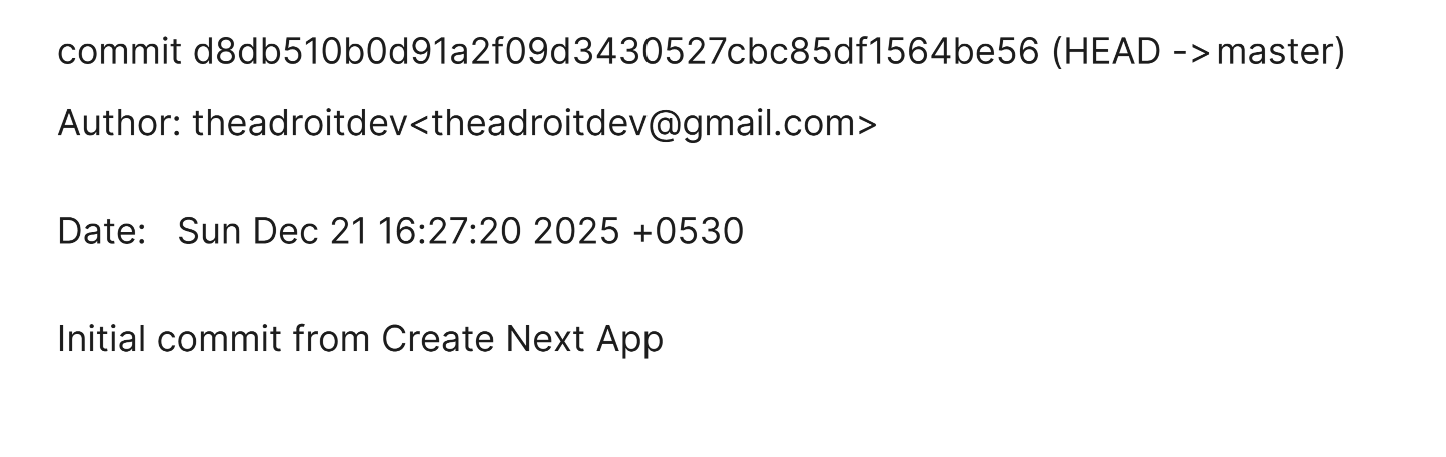
A commit is a snapshot of your code at a specific moment.
Each commit has:
A unique hash (ID)
Author information
Timestamp
Commit message explaining why the change was made
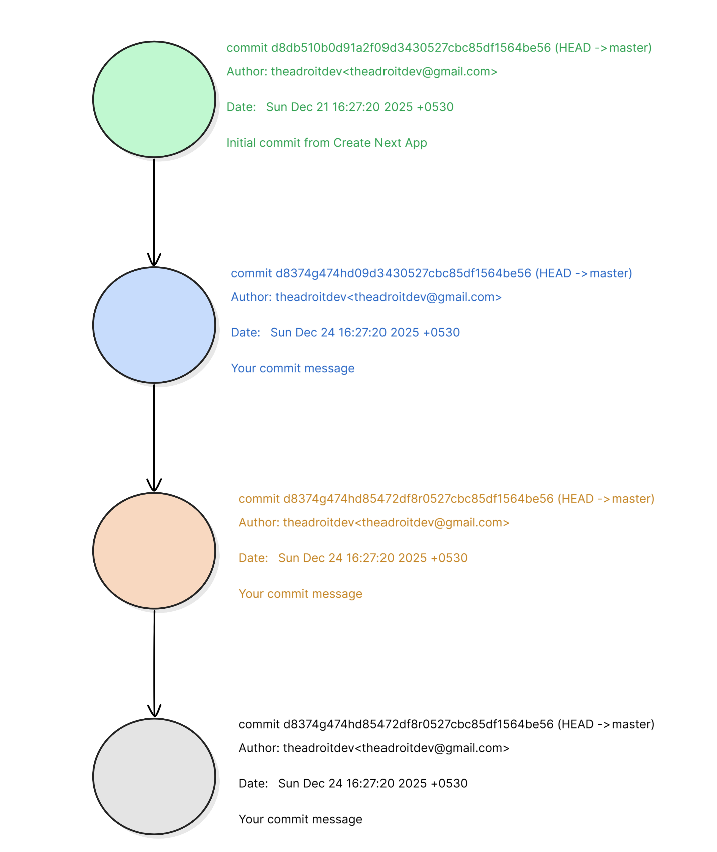
Commit history flow
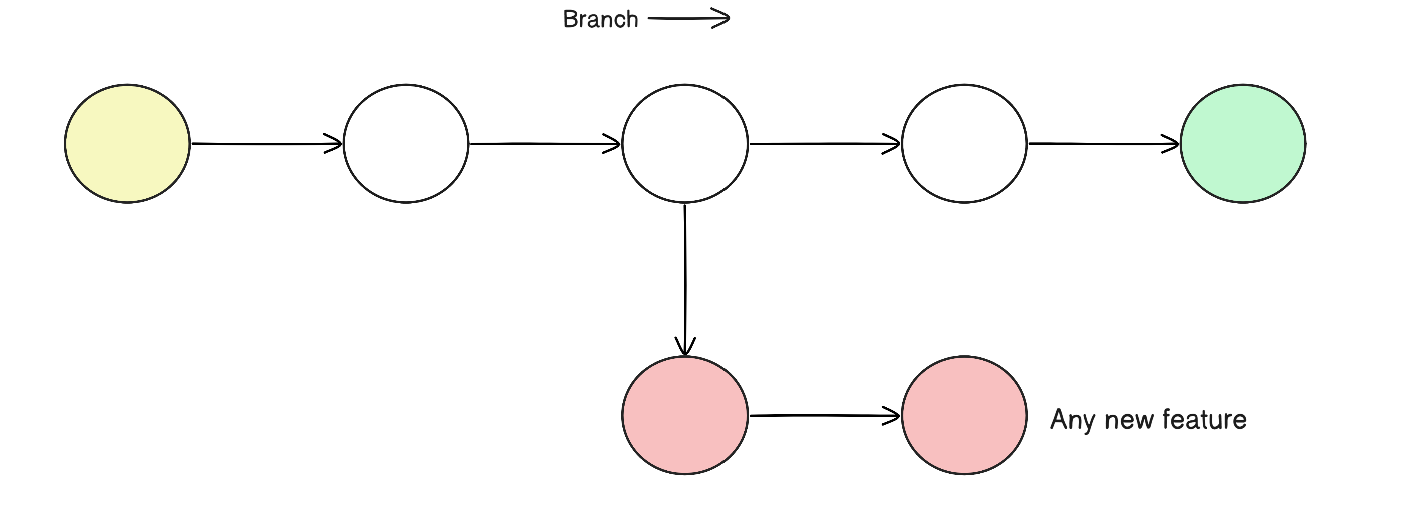
3) Branch
It is an independent line of development.
4) Head
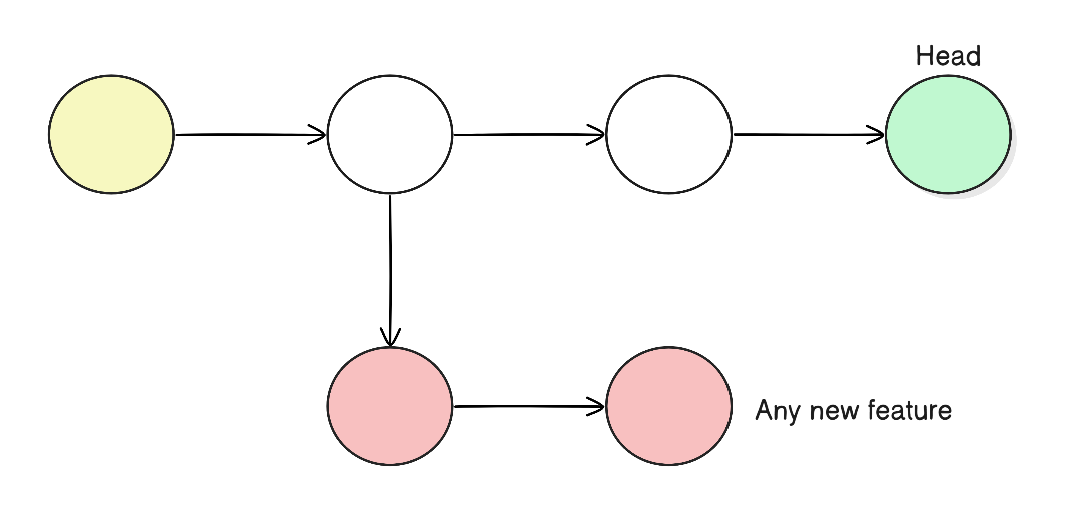
Head is the current pointer of your branch showing where you are right now
It usually points to:
- The latest commit of the current branch
Common Git commands and basic workflow of using Git from scratch
Go into project
cd C:/Users/user/my_project
Initialize the repository
git initThis creates a new subdirectory named
.gitthat contains all of your necessary repository files , a Git repository skeleton.At this point, nothing in your project is tracked yet
If you want to start version-controlling existing files (as opposed to an empty directory), you should probably begin tracking those files and do an initial commit.
With the following commands.
git add . or <file name>git commit -m 'Initial commit'git logDisplays the commit history.
Shows:
Commit hashes
Authors
Dates
Messages
Helps trace when and why changes were introduced
other useful variations:
git log --oneline
git log --graph
Bonus:
If you want to undo a git repository
you must delete the hidden .git folder in your project's root directory. This action is irreversible and will permanently remove all version control history, including all commits, branches, and tags, leaving only your current files in their working state.
To do so on Windows
You can manually delete the .git folder using your operating system's file explorer.
Navigate to the root folder of your project.
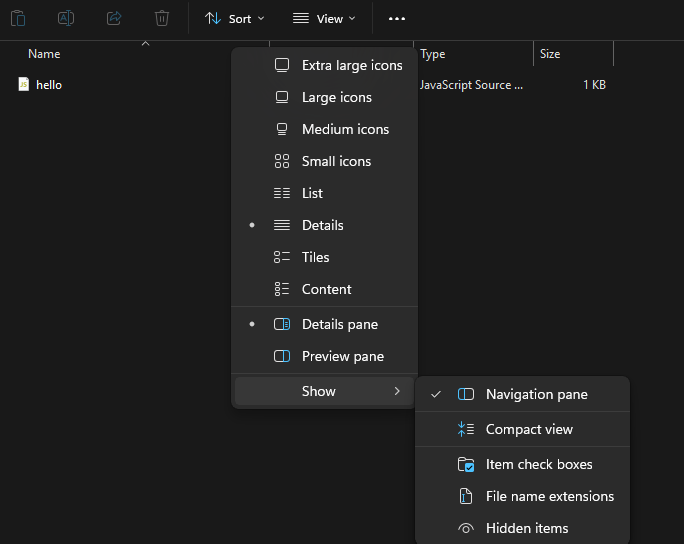
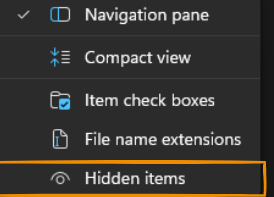
Enable viewing hidden files/folders as the
.gitdirectory is hidden by default:- Windows: In File Explorer, go to the View tab and check the "Hidden items" checkbox.
After deleting the folder using either method, you can verify that the repository is uninitialized by running the git status command in your terminal.
It should return a message like fatal: not a git repository
If you want to revert a commit
git revert <commitHashId>
This does the following
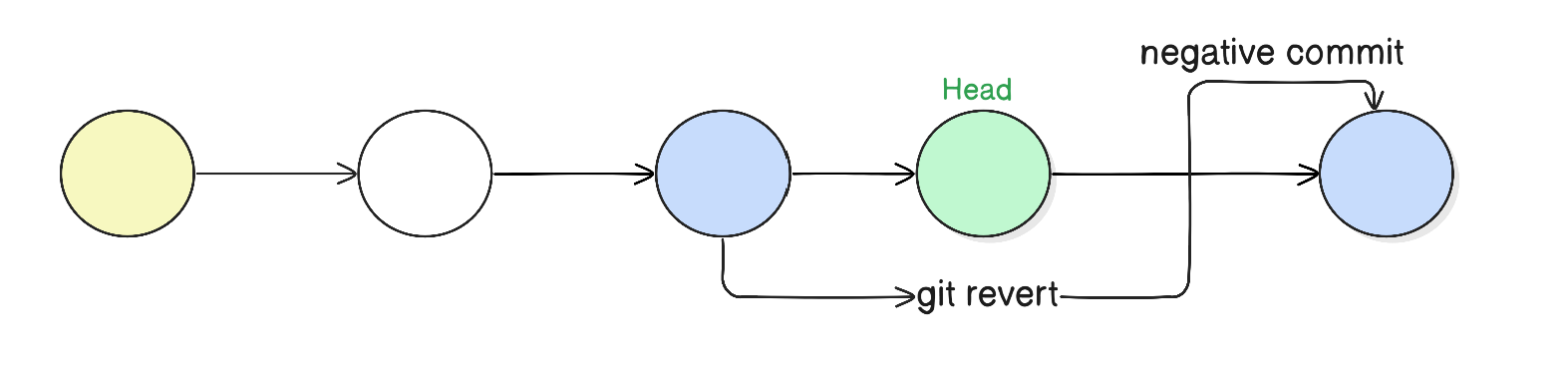
Think of it in this way:
To undo a commit you have only 2 options
Either you discard the changes from the code
Or move HEAD back to a previous commit, discarding the commit entirely. Which can be done through
git reset --hard <commit>command.
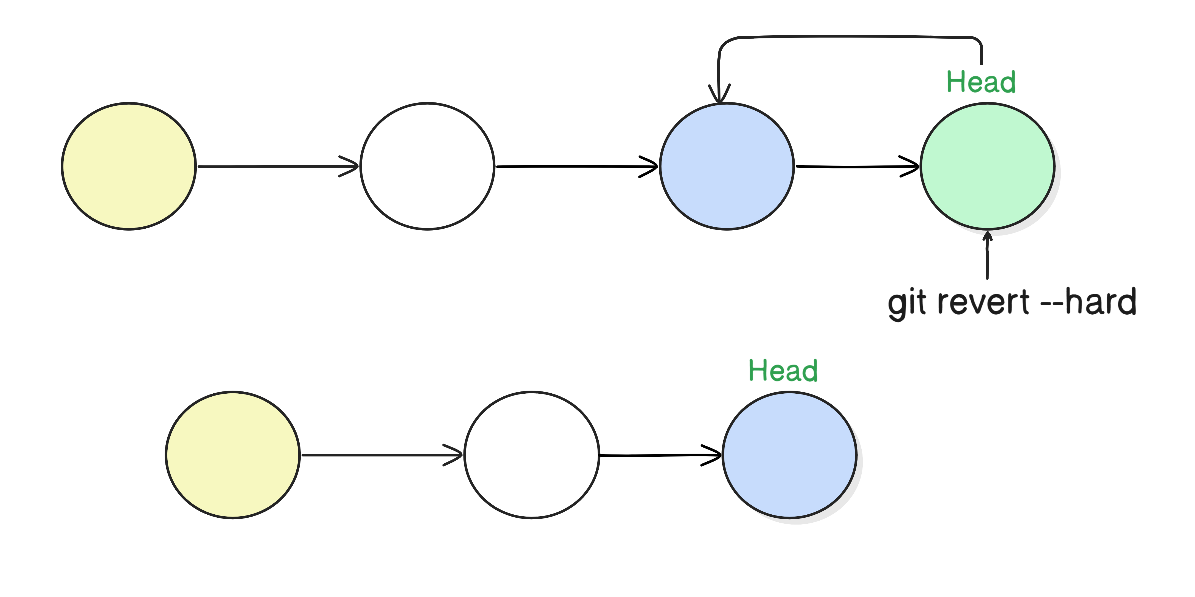
Part 2 soon…
During the early years of the Linux kernel maintenance (1991–2002), changes to the software were passed around as patches and archived files. In 2002, the Linux kernel project began using a proprietary DVCS called BitKeeper.
In 2005, the relationship between the community that developed the Linux kernel and the commercial company that developed BitKeeper broke down, and the tool’s free-of-charge status was revoked. This prompted the Linux development community (and in particular Linus Torvalds, the creator of Linux) to develop their own tool based on some of the lessons they learned while using BitKeeper. Some of the goals of the new system were as follows:
Speed
Simple design
Strong support for non-linear development (thousands of parallel branches)
Fully distributed
Able to handle large projects like the Linux kernel efficiently (speed and data size)
Since its birth in 2005, Git has evolved and matured to be easy to use and yet retain these initial qualities.